Auditwright WCAG Accessibility Scanner: First Look at the New WordPress Plugin That Scans Rendered Pages, Not Raw HTML
By Day Zero Guides Editorial · How we produce guides
Some links in this guide are affiliate links. If you sign up through them, Day Zero Guides may earn a commission at no extra cost to you. This never affects which products we cover or what we say about them. See our affiliate disclosure for details.
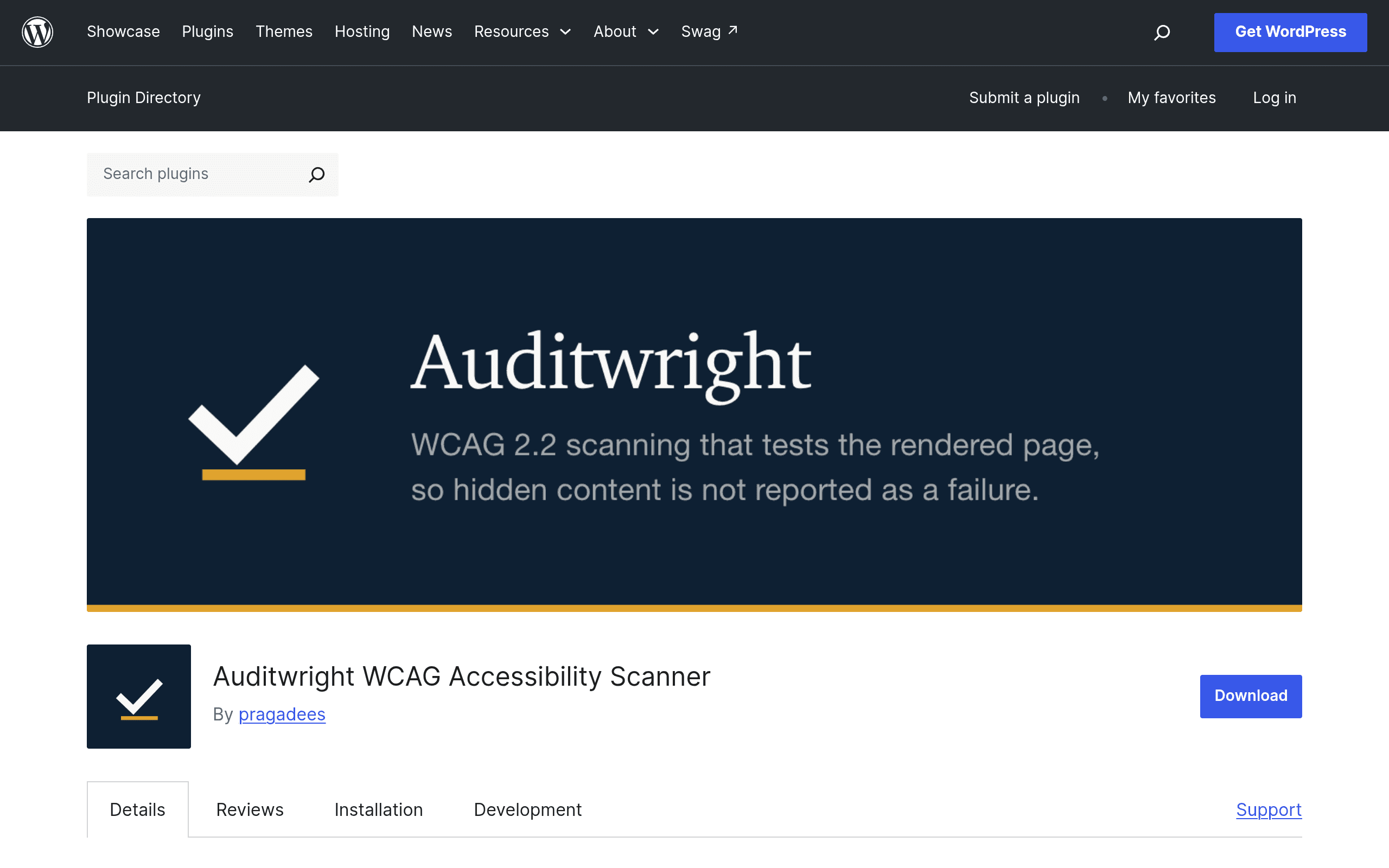
Pricing First: What You Actually Get for Free
Auditwright ships as a standard WordPress.org plugin, which means the core product is free to install right now from your wp-admin plugin search. The free version includes:
- WCAG 2.2 Level A and AA scanning of your published posts and pages
- Element-level failure reporting (exact selectors, not vague "page has issues" summaries)
- Fix guidance tied to each violation
- Rendered-page scanning, meaning it evaluates what a visitor's browser actually shows, not the raw HTML source
- Accessibility statement generation that updates based on scan results
There's an Auditwright Pro add-on mentioned on the plugin page, but as of this writing the developer hasn't published pricing for it anywhere on the WordPress.org listing — no tiers, no per-site cost, no annual/monthly split. That's worth flagging bluntly: if you're evaluating this today, you're evaluating the free tier on its own merits, because you can't yet compare Pro's cost against what it unlocks. Treat any assumption about Pro pricing as speculation until Auditwright publishes it.
The practical takeaway: if you run a WordPress site and want a zero-cost way to catch real WCAG 2.2 A/AA failures on your actual live pages — not a synthetic test environment — the free version is a legitimate reason to install this today. The value proposition isn't "try before you buy." It's "this free tier already does something the free tiers of most competitors don't: scan your content the way a screen reader or sighted visitor actually encounters it."
What Makes the Scanning Approach Different
Most accessibility checkers — including free browser tools — parse static HTML or a snapshot of the DOM at load time. Auditwright instead renders the page as a visitor would see it before scanning, which means:
- Content hidden via CSS (
display: none, collapsed accordions, off-canvas menus not yet triggered) is excluded from the scan the same way it's excluded from what a sighted user sees - Dynamically injected content from page builders (Elementor, Divi, Gutenberg blocks with client-side rendering) gets evaluated after it actually renders, not before
- You're less likely to get false positives from markup that never becomes visible or interactive
Under the hood it uses axe-core, the same open-source engine that powers Axe DevTools and is embedded in Chrome's Lighthouse accessibility audit. So the rule set itself isn't proprietary or unusual — what's different is where and how it's applied: directly against your published WordPress content from inside wp-admin, rather than against a URL you paste into a separate tool.
Concrete Use Cases
Agency handing off a client site. Before final sign-off, scan every published page and export the violation list with selectors, so the dev team can fix specific elements rather than guessing which heading or form field triggered a Level AA failure.
Solo site owner needing a public accessibility statement. Instead of hand-writing a statement and letting it go stale, generate one from actual scan results, so it reflects current conformance rather than a one-time claim from 18 months ago.
Content editor publishing regularly. Someone adding blog posts weekly without dev support can run a scan after publishing to catch missing alt text, poor color contrast in a themed callout box, or an empty link — all without opening dev tools or knowing what axe-core is.
Site with heavy use of page builder hidden/toggle content. Sites using accordions, tabs, or mega-menus benefit from the rendered-page approach because a raw HTML scanner would flag hidden panel content that visitors never actually encounter in that state.
How It Compares to the Tools You've Probably Already Used
| Auditwright | Lighthouse (Chrome DevTools) | WAVE (WebAIM) | Axe DevTools (Deque) | |
|---|---|---|---|---|
| Price | Free plugin; Pro add-on exists, pricing unpublished | Free, built into Chrome | Free browser extension; WAVE API and enterprise tiers paid | Free browser extension; Axe DevTools Pro is a paid team subscription |
| Engine | axe-core | Lighthouse's own accessibility audit (partly axe-core-based) | WebAIM's proprietary rule engine | axe-core |
| Scan scope | Published WordPress posts/pages, scanned from inside wp-admin | Single page, run manually per URL in DevTools | Single page, via extension or URL entry | Single page via extension; Pro adds guided/intelligent workflows |
| Rendering approach | Renders page as visitor sees it, excludes hidden content | Scans loaded DOM state at audit time | Visual overlay on rendered page, shows icons over flagged elements | Scans loaded DOM, integrates with dev tools/CI in Pro |
| Best for | WordPress site owners wanting ongoing scans tied to their CMS content and an auto-updating accessibility statement | Developers wanting a quick one-off audit alongside performance/SEO checks | Non-technical reviewers wanting a visual, in-page view of errors | Dev teams building accessibility testing into their workflow/CI pipeline |
| Accessibility statement generation | Yes, built in | No | No | No |
Should You Install It Today?
If you manage a WordPress site and have never run any accessibility scan against your live pages, Auditwright's free tier is a reasonable first step — it costs nothing, it's scoped to your actual published content, and it gives you selector-level detail you can hand to a developer or fix yourself in the block editor. It won't replace manual testing with real assistive technology (screen readers, keyboard-only navigation), and no automated scanner — axe-core-based or otherwise — catches every WCAG failure, particularly ones requiring human judgment like whether alt text is meaningful rather than just present.
The open question is Pro pricing. Until Auditwright publishes what the paid tier costs and what it adds beyond the free feature set, there's no way to know if it's a reasonable upgrade or an unnecessary one. For now, install the free version, run it against your published pages, and decide on Pro once the developer actually tells you what you'd be paying for.